Start with your words, or get help with a draft
In the upcoming release, Write it yourself lets you write or paste a story chapter by chapter. It suits a short piece you have already written, a personal adventure or an idea you want to develop in your own voice. You decide what happens and how to tell it.
Dream it up is Storiya’s AI writing path. Describe the story you want, then choose its kind, mood and intended audience. You can add a setting and character details to give the draft direction. Review the result and edit anything that does not fit before creating the finished book.
How to turn an idea into an illustrated book
Give your story a starting point
Choose a main character, a place and something that changes. “A quiet gardener discovers a door in an old apple tree” gives you more to work with than a genre alone. Short ideas are welcome; extra details help guide an AI draft.
Build the chapters
Use the storyboard to review your title and chapter text. Give each chapter a clear moment: a discovery, a choice or a consequence. Read the draft for names, events and details you want to keep consistent.
Make the character recognizable
Add a character description, a reference photo or both. Distinctive details such as a green coat or a crooked hat can guide the story and AI illustrations. A reference is guidance, not a guarantee that every picture will match exactly.
Choose the pictures
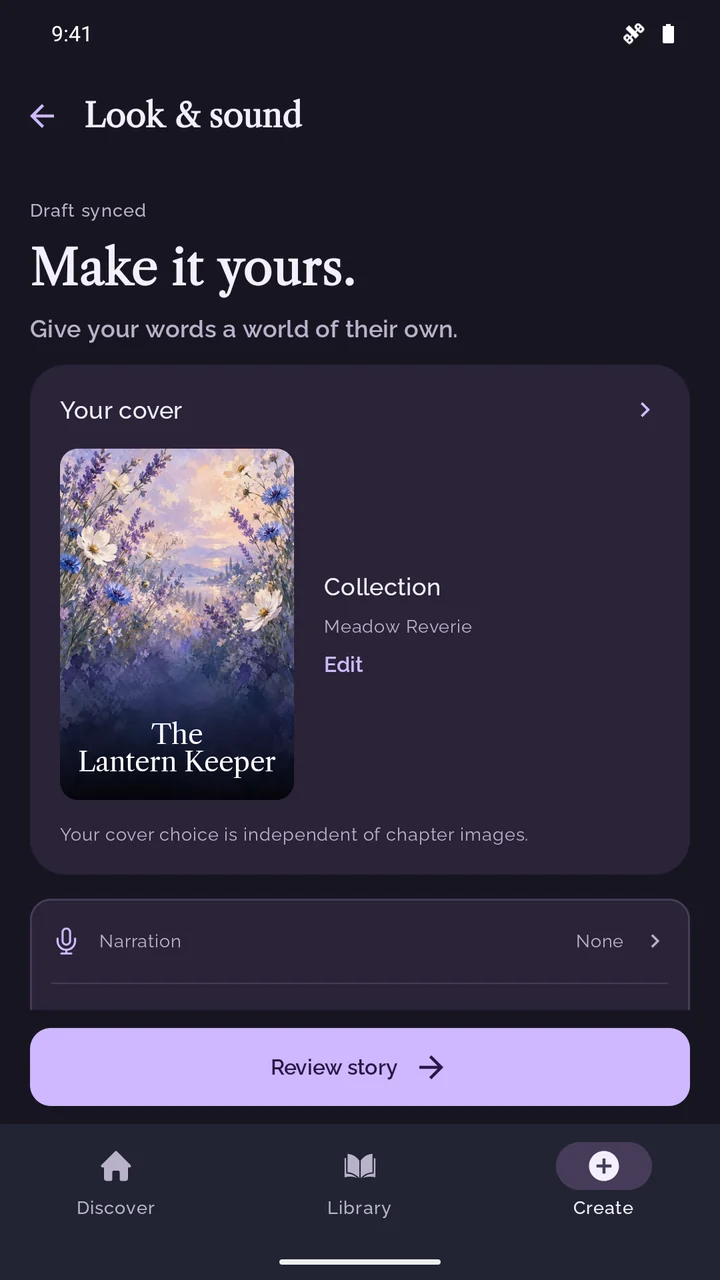
Use your own photos for chapter images, or select AI illustrations and an illustration style. Consider what each picture adds to the scene. Choose a Collection cover, frame your own photo or request an AI cover for the first impression.
Review the look, sound and cost
Choose the book’s paper and font, and decide whether to add narration. Check the story and credit quote before confirming. AI writing, artwork and generated narration use credits; you can leave optional AI features out.
Keep it private or share it
Your finished story starts privately in your Library. Read it first, then decide whether to publish it to Discover so other Storiya readers can find it. You control that choice.
Can I create a story without AI or credits?
Yes. In the upcoming release, use your own words and photos, select a photo or free Collection cover, and leave narration off to create for 0 credits. AI features are optional, and their cost is shown before you confirm.
Make something you will want to read again
A good first project can be a short adventure, an illustrated travel memory or a small fantasy world. Keep the idea focused enough to finish, and review AI-generated details rather than treating the first result as final. Use text and photos you have permission to include.
If you enjoy audiobooks, you can also explore adding AI narration to your story. Prefer discovering other writers? The Android app’s Discover screen brings together stories that creators have chosen to publish.
Your next chapter
Explore illustrated story creation and narrated stories, or ask us a question.
Explore Storiya for Android